
To view the Barcode Generator, navigate to Products > Barcode Generator. Here, you will see the Bar-code Generator page where you can generate bar-codes for your products.
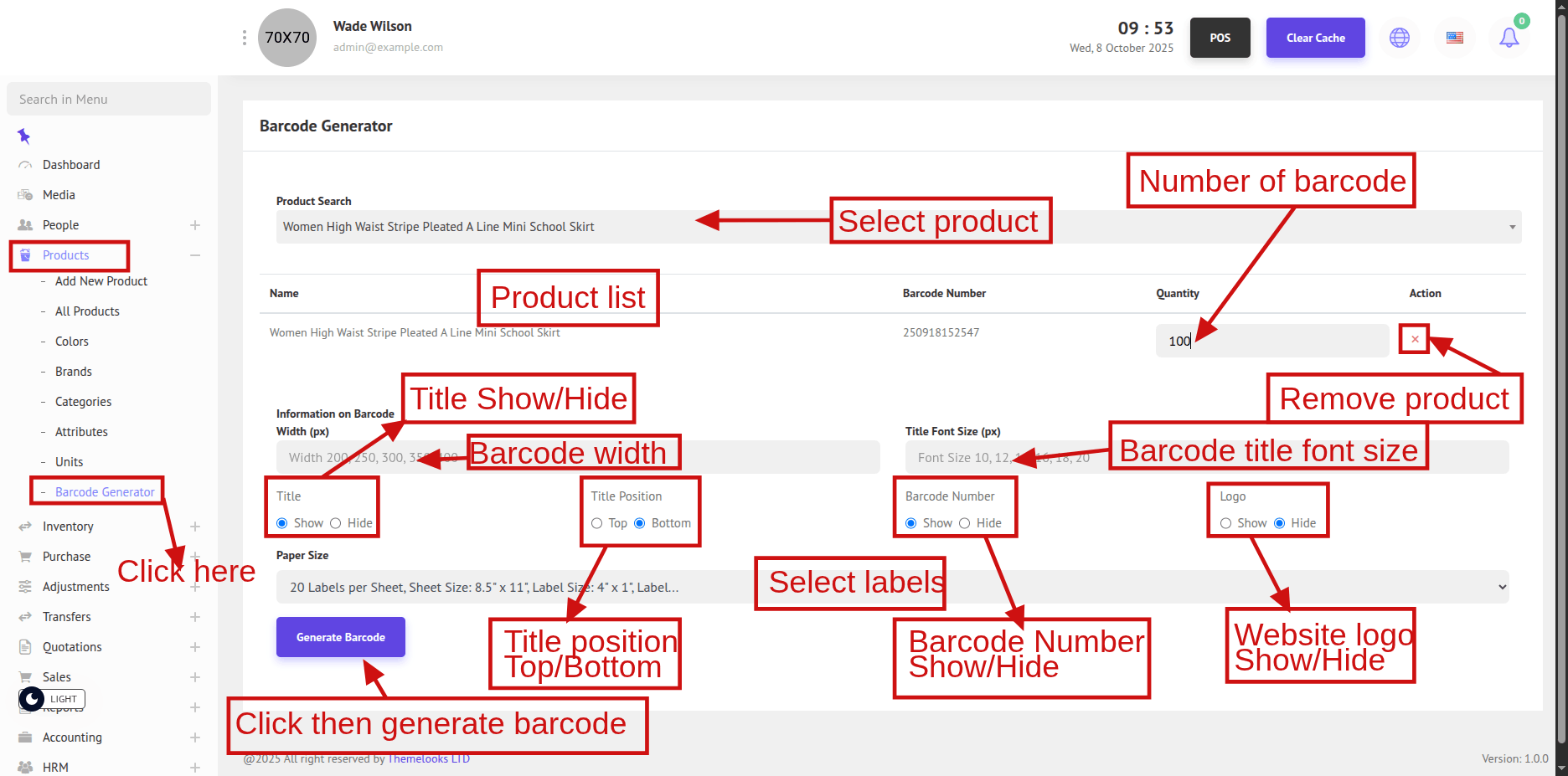
Product Search: Use the product search drop-down to select the product(s) for which you want to generate bar-codes.
Product List Table
Name: Product name.
Bar-code Number: Bar-code number for the product.
Quantity: Enter how many bar-code labels you want to generate for each product.
Action: Click the red "X" to remove the product from the list.
Information on Bar-code
Width (px): Enter the bar-code label width. Supported widths include: 200, 250, 300, 350, 400.
Title: Show or Hide the product title on the bar-code.
Title Position: Choose Top or Bottom for where the title should appear on the label.
Title Font Size (px): Enter the font size for the title. Suggested values: 10, 12, 14, 16, 18, 20.
Bar-code Number: Choose to Show or Hide the bar-code number below the bar-code line.
Logo: Choose to Show or Hide your business logo on the bar-code label.
Paper Size: Select the sheet type and label size from the drop-down.
Click the Generate Bar-code button to create bar-code labels based on your selected settings.
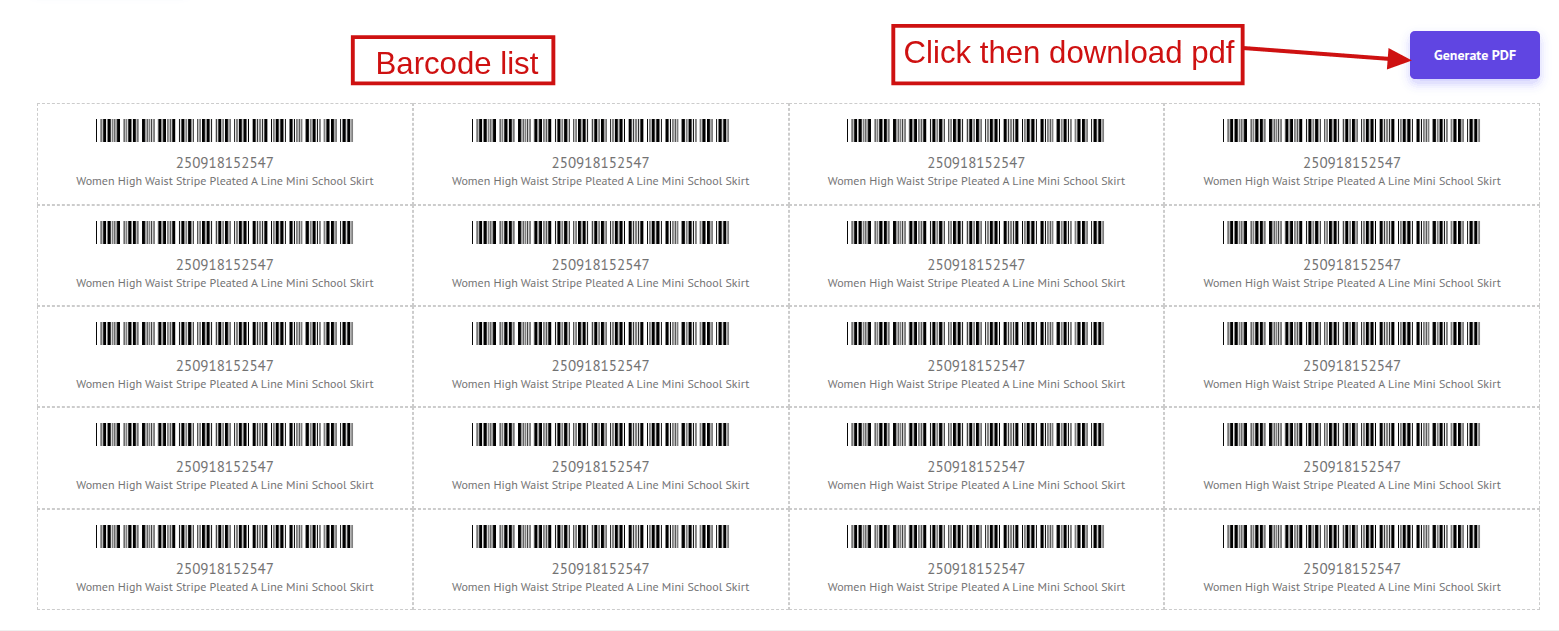
You can also download the generated bar-codes by clicking the Generate PDF button. This will create and download a PDF file.